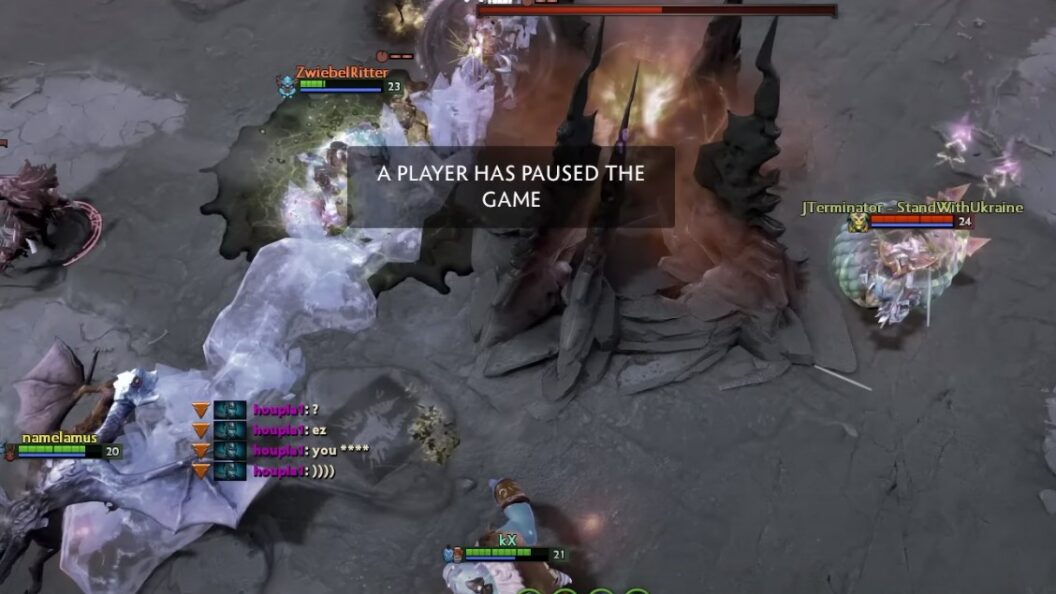
Similar to most online games, Dota 2 permits players to temporarily halt their game mid-battle. This interruption feature is relatively simple to use, but it’s vital to bear in mind that suspending public matches should only be done out of necessity.
Though there aren’t any formal rules or restrictions concerning game pauses, a set of unspoken guidelines exist that every player should abide by. Disregarding these etiquettes may irritate fellow players and even lead to reports of misbehavior.
This guide aims to equip you with knowledge on how to effectively pause in Dota 2 and offer insight into the appropriate moments for pausing.
Initiating a Pause with a Hotkey
Bringing a Dota 2 match to a temporary standstill can be executed with minimal effort. This action, known as a pause, can be achieved with a single key press. The F9 key serves this purpose as per the default settings.
Yet, players are not confined to this default setting and have the liberty to customize the hotkey. This feature can be particularly beneficial for those using a laptop keyboard to play, as some contemporary laptop models have function keys that simultaneously manage device settings such as brightness levels or audio volume.
In order to adjust the default hotkey and set it to a key of your preference, follow the detailed steps below:
- Initiate by clicking on the gear icon, representing the Settings menu, located in the top-left corner of the Dota 2 home screen. This will open a menu that houses all configurable settings for the game;
- Within the Settings menu, you will find several tabs arranged horizontally. Scan through them and select the tab labeled ‘HOTKEYS’. This section contains a list of actions and their corresponding keys;
- In the ‘HOTKEYS’ section, navigate down to the section that pertains to ‘Game’. Here, you will find the ‘Pause’ action;
- Click on the box next to the ‘Pause’ action. The box will now be in editable mode, allowing you to set a new key;
- Press the key that you would like to use for pausing the game. The system will immediately register this key. Ensure that the key you choose does not conflict with other action keys to prevent any complications during gameplay;
- Once you’ve set your desired key, close the settings. The new hotkey for pausing is now set and ready for use during your Dota 2 games.
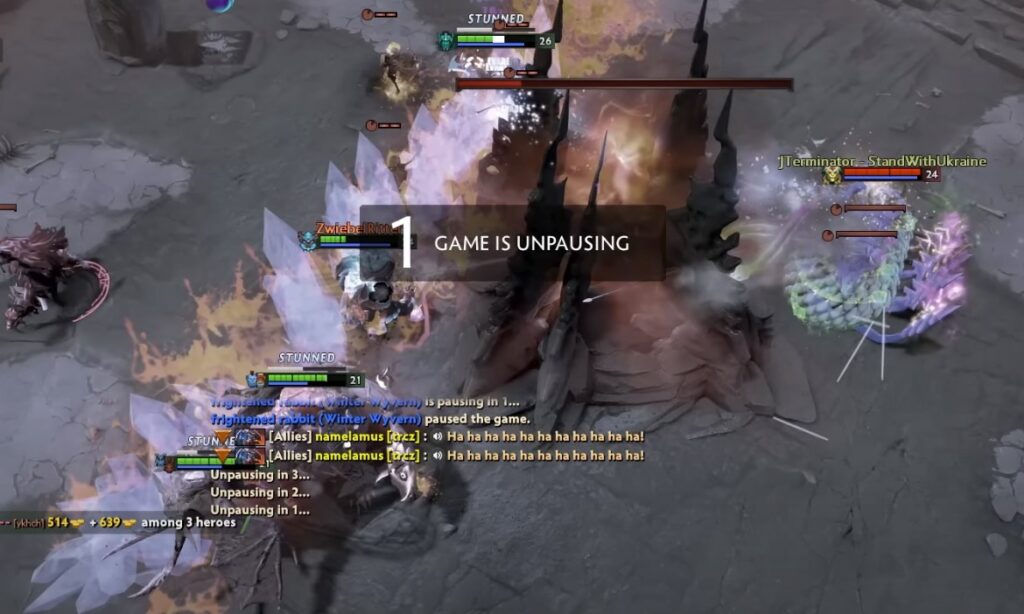
To resume or unpause the game after a pause, all you need to do is press the designated pause hotkey once again.
Console-Based Pausing
An alternative method to pause the game involves using a console command. Although it demands more key inputs, this technique can be beneficial.
You’d need to familiarize yourself with opening the console in Dota 2 first, as it’s a feature that many users overlook. Upon accessing the console, input ‘dota_pause’ to pause and resume the match.
Though this approach may seem convoluted, it’s valuable in certain scenarios and is primarily used during the loading screen, drafting phase, and strategy time.
For example, in a Captain’s Mode game, if a captain loses connection, the only way to pause is via the console. This pause allows the disconnected player enough time to reconnect.
Appropriate Times to Pause
The most common reason to invoke a game pause is when a teammate experiences a disconnection, to prevent granting the opposing team an undue advantage. In such cases, the affected team is allotted at least 45 seconds before gameplay can be resumed.
Another plausible reason for pausing is to rectify technical issues. If you encounter lagging connectivity or peripheral malfunctions (keyboard, mouse, or headset), it’s acceptable to momentarily stop the game. Ensure to communicate the reason for the pause to the other team via the all-chat function.
Dota 2 Pausing Methods
| Pause Method | Description | How to Execute |
|---|---|---|
| Hotkey Pause | Pausing the game by pressing a designated key. | Default key is F9. Can be changed in Settings -> HOTKEYS -> Game -> Pause. Press the key again to unpause. |
| Console Pause | Pausing the game by entering a command in the console. | Open the console (default key is ~). Type and enter ‘dota_pause’. Type and enter ‘dota_pause’ again to unpause. |
| Automatic Pause | The game pauses automatically when a player disconnects. | No player action required. Other players can unpause after 45 seconds or when the disconnected player reconnects. |
Something to Keep in Mind
In Dota 2, an unwritten rule is to refrain from arbitrary pauses as they can disrupt gameplay flow or momentum.
Moreover, halting gameplay during crucial game moments is generally frowned upon. A notorious instance of such misuse is the “Puppey Pause.” The then-captain of Na’Vi, Puppey, allegedly paused a match at a crucial juncture, potentially exploiting the pause function to gain an unfair advantage.
Although unprovable, this instance illustrates how pause manipulation could potentially skew the game’s integrity. Thus, it’s advised to abstain from pausing during team fights and similar critical moments.