Dota 2, renowned as one of the greatest and most prosperous video games ever, stands out for its formidable learning curve, often prompting players to ponder over its challenging nature.
Whether you’re a novice or a seasoned player seeking improvement, understanding the optimal Dota 2 settings is crucial. These settings ensure that you can wholeheartedly focus on honing your skills and grasping the game’s mechanics without being hindered by lag or other technical glitches.
In this article, we will delve into some of the recommended Dota 2 settings. However, it’s important to note that the settings you choose will ultimately depend on your personal preference and the specifications of your computer. The suggestions outlined in this guide aim to enhance your gameplay and overall experience.
Enhancing Your Gameplay: How to Change Settings
Changing the game settings can be done through two methods. The easier approach is to click on the gear icon located at the top-left corner of the screen within the game. This will open the settings page, which is divided into three primary categories.
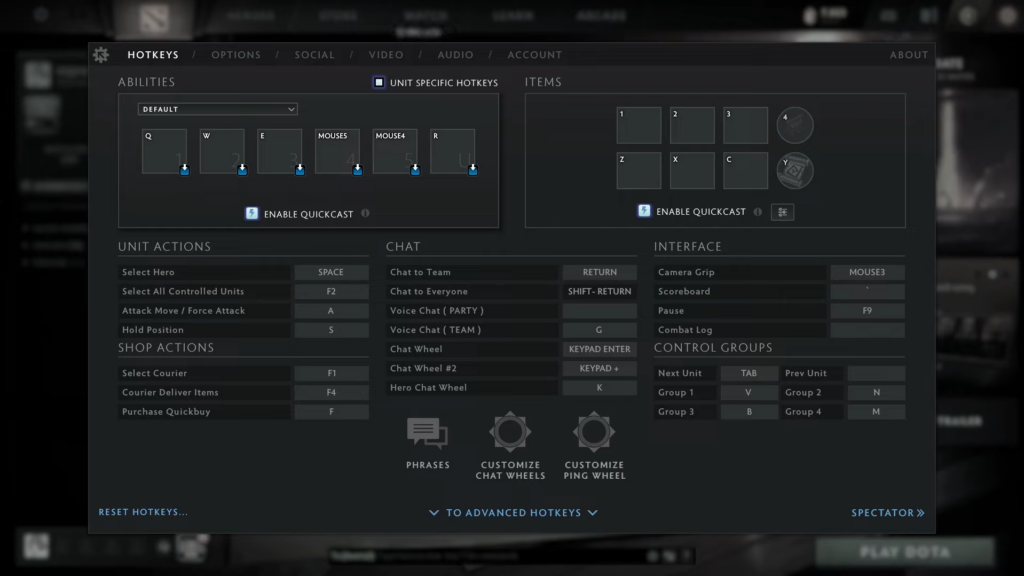
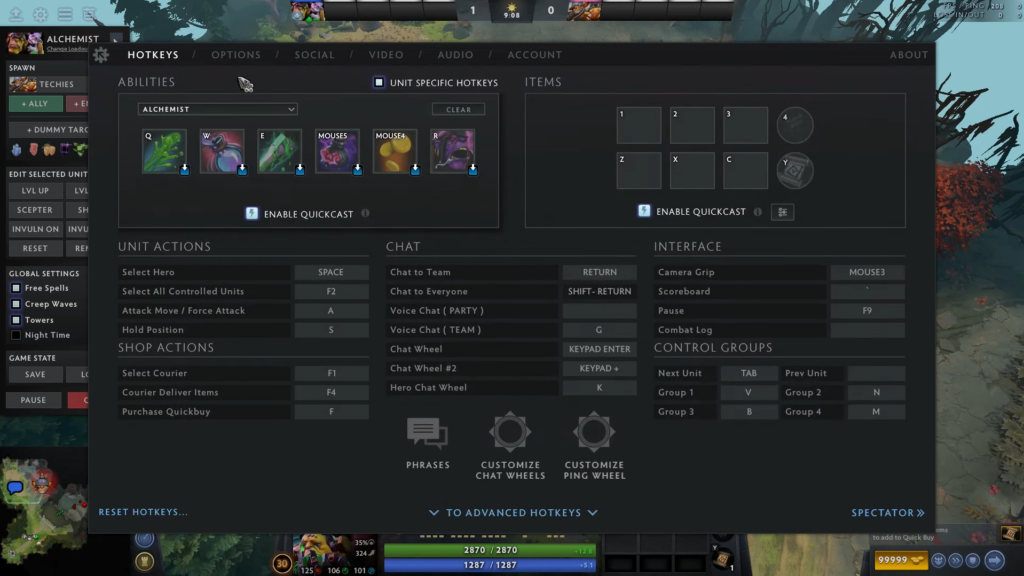
The first category, known as Hotkeys, allows you to customize or assign hotkeys for various in-game commands. Additionally, you have the option to choose a pre-existing hotkey template. Mastering these hotkeys or shortcuts will save you valuable time, eliminating the need to manually navigate through icons or commands while playing.
The Options tab enables you to modify settings related to the game, minimap, camera, profile, social interactions, networking, chat, interface, and miscellaneous aspects. These settings are designed to optimize your gameplay and enhance your overall experience. If you prefer less interaction with other players, you can make adjustments to the options within this tab.
To modify your Social settings, navigate to the third tab. This section allows you to customize how you engage with friends and fellow players within the game.
The fourth tab is dedicated to Video settings. These settings directly impact game performance, encompassing aspects such as resolution, rendering, lighting, and textures. Our subsequent discussions will primarily focus on these settings, as they significantly influence your game’s FPS (frames per second).
In the fifth tab, you’ll find the Audio settings. Here, users have the ability to adjust various volumes within the game, including game sounds, music, and unit speech. Additionally, you can modify settings related to broadcasting, voice communication, and more within this tab.
Lastly, the Account tab serves as a platform to manage your Steam account’s associated phone number, recalibrate your MMR (Matchmaking Rating), and oversee your team information.
Optimal Keyboard Settings for Dota 2
In the realm of Dota 2, efficiency reigns supreme. Utilizing shortcuts and hotkeys is imperative, as every moment spent searching for an icon to cast a spell or use an item could potentially cost your hero its life.
While many players recommend sticking with the default hotkeys, some opt to customize them to resemble those from another game they’re accustomed to, such as League of Legends. The best approach to determining your ideal hotkey setup is to experiment with different options during matches. This way, you can discover the configuration that suits you best.
Numerous professional and competitive players prefer to enable quickcast, which enables the casting of targeted abilities wherever the cursor is placed. This eliminates the need for an additional left-click after selecting a spell, saving valuable time. However, if you tend to misclick, experience panic clicking, or have a tendency for fat-fingering, it may be more advantageous to disable quickcast instead.
Optimal FPS Settings for Dota 2
When it comes to Dota 2, one of the most crucial aspects to focus on is achieving a smooth FPS (frames per second) performance. Low FPS can indicate sluggish gameplay and transform your experience into a slideshow rather than an immersive playthrough.
Therefore, it is essential to fine-tune your settings to ensure an optimal FPS level, preferably around 60 FPS. If you possess a high-end gaming setup, you can maximize all video settings. However, if you’re working with a less powerful system, you’ll need to make adjustments for smoother gameplay at the expense of some visual fidelity.
Firstly, avoid setting your resolution too low, as it can negatively impact your field of view (FOV). Unlike first-person-shooter games, Dota 2 relies on maximizing map information. I recommend opting for a resolution of 1920×1080 or your screen’s native resolution.
If you’re encountering low FPS, consider applying the following options within the game’s video settings. Ensure that you enable the “Use advanced settings” option in the video tab to access these options:
- Rendering API: DX11;
- Texture Quality: High;
- Effects Quality: Low;
- Shadow Quality: Medium;
- Game Screen Render Quality: 70-100%;
- Maximum frames per second allowed: 120 Hz or based on your monitor’s refresh rate.
Unleashing the Potential: Optimal Gameplay Settings
Are you aware that tinkering with specific settings can provide you with a significant advantage when it comes to engaging in gameplay? It goes beyond simply aiming for a smooth and enjoyable experience. Certain settings possess the potential to enhance your skills and proficiency in Dota 2, and in this section, I will delve deeper into these settings to shed light on their importance and the impact they can have on your gameplay performance. Optimizing these settings, you can elevate your gaming abilities and potentially gain a competitive edge in the world of Dota 2.
Optimizing Auto Attack: Choosing the Right Setting
A common mistake made by many players, especially rookies, is leaving their hero on auto-attack mode, causing them to automatically engage nearby enemies. This can often lead to unfortunate consequences, such as revealing your position when you’re attempting to remain hidden. To avoid such situations, it is recommended to adjust the auto-attack option to either Standard or Never.
Here’s how you can make the necessary changes:
- Access the Options tab;
- Navigate to the Game section;
- Locate the Auto Attack option;
- Tick the Standard setting to ensure more control over your hero’s attacks.
Optimizing Camera Focus on Hero Respawn
A recurring issue faced by many players is inadvertently wasting their TP (town portal) scroll upon respawning. Instead of teleporting to a friendly tower, they unintentionally teleport to the base. This predicament arises from the default setting where the camera automatically centers on the hero at the fountain after respawn. However, you can adjust this setting to ensure that your screen remains focused on your intended destination even upon hero respawn.
Here’s how you can modify the settings:
- Access the Options tab;
- Navigate to the Camera section;
- Disable the “Center Camera on Hero Respawn” option.
Enhancing Channeled Abilities: Enabling Hold/Stop Requirement
Have you ever found yourself amidst a chaotic team fight, utilizing a crucial channeling ability, only to be abruptly interrupted due to an unintended misclick? If you’ve experienced this frustrating scenario, it’s advisable to modify a particular setting to prevent such mishaps. By making this adjustment, you can ensure that when using channeling spells, they won’t be inadvertently disrupted by accidentally moving your character or attacking another unit.
Here’s how you can change the settings:
- Access the Options tab;
- Navigate to the Game section;
- Enable the “Channeled Abilities Require Hold/Stop” option;
- Additionally, you can also modify the settings to require a Hold/Stop command for teleportation. Three rows below the “Channeled Abilities Require Hold/Stop” option, you’ll find the “Teleport Requires Hold/Stop” setting. Enable this option as well.
Streamlining Self-Casting: Activating Double Tap Ability
In Dota 2, certain spells like heals or buffs can be cast on the heroes themselves. However, a single misclick can quickly shift the tide of a team fight, leading to unfavorable outcomes when you fail to self-cast a critical spell. To avoid such mishaps, you have the option to configure your settings and enable the functionality that allows you to automatically cast an ability on your hero by double-tapping it.
Here’s how you can adjust the settings:
- Access the Options tab;
- Navigate to the Game section;
- Enable the “Double Tap Ability to Self-Cast” option.
Tower Secrets: Revealing Attack Range with Alt
Competitive and professional Dota 2 players often possess an encyclopedic knowledge of unit and tower attack ranges, a result of countless hours spent honing their skills. However, there exists an alternative method to swiftly gauge tower attack ranges, allowing you to remain hidden from opponents or avoid getting caught within striking distance, especially when your hero is at a lower level. By adjusting the settings, you can enable a feature that displays not only a tower’s attack range but also the specific unit it targets when holding the Alt key.
Here’s how you can modify the settings:
- Access the Options tab;
- Navigate to the Interface section;
- Enable the “Holding Alt Shows Tower Attack Range” option.
Conclusion
The world of Dota 2 becomes even more immersive and competitive when you delve into the realm of settings optimization. Through this comprehensive review, we have explored the various aspects of Dota 2 settings, from graphics and audio configurations to keybindings and network adjustments. By fine-tuning these settings, you can unlock your true potential and gain a significant edge over your opponents.
With the right settings, you can enhance your responsiveness, accuracy, and overall performance in the game. Whether it’s maximizing your FPS, minimizing input lag, or customizing your controls for seamless gameplay, the power to dominate the battlefield lies within your grasp.